Frequently Asked Questions
📓 How is this distribution different from the original?
First of all, what's different about this distribution is the selection of books. The likelihood that a book isn't included here, but is in the "original" distributions, is minimal. If you find such a book, it's an emergency, please contact me.
Now about the differences.
The main difference is the size. That's what this distribution is all about.
Additional benefits:
- Books with XML structure errors have been repaired.
- Broken illustrations have been repaired or removed.
- Annoying duplicates have been eliminated (not all, of course).
- There are also reader comments from the Flibusta website and brief information about some authors.
- Also, the FLibrary cataloger is being given away here; it's better, better than MyHomeLib.
Why does the number of books differ?
- Duplicates removed
- Zero-size files are discarded
- Files that were cut off in the middle were thrown out
- Added unindexed files, i.e. those that are in the archives but not in the Flibusta/Librusec dumps
Why then is this distribution so much smaller in size?
The size reduction is achieved as follows:
- The text of books and illustrations are stored separately.
- The texts are compressed in 7z, which is much more efficient than zip.
- Images are re-encoded to JPEG XL, which is more efficient than JPEG and PNG.
- Reviews and information about the authors are small in size, ~1 GB.
- Removed duplicates also provide 5% savings.
- Broken and unrepairable images have been removed.
Bonus: you don't even need to download pictures, reviews, and information about the authors, which will make the files even three times smaller.
📓 How will the distribution be updated?
Just like the “original” ones, in the mode of adding new archives
(⊙_⊙) Attention! Distribution is carried out by adding new archives; each addition creates a new torrent. To start downloading a new archive, users need to do the following:
- Stop downloading.
- Delete the old torrent from your client, but without deleting the distribution files.
- Download the new torrent and run it in your client instead of the old one, specifying the path to the old folder where the new archives should be downloaded.
Your client must hash (verify) the old folder (if they don't do it themselves, help them do it). As a result, they will only download the archives that you don't have yet. The old archives are not deleted, but continue to be distributed!
If you have already deleted old archives, you can prevent them from being downloaded again by unchecking the corresponding boxes when starting a new torrent. If possible, it is advisable not to delete old archives for as long as possible. This will help other people download the distribution faster.
I will try to update the distribution at the beginning of the month.
Updates include:
- A couple of new 7z archives with books in fb2 format, without pictures
- 4 new zip archives with images: covers and illustrations
- Updating the index file *.inpx
- Replacing FLibrary distributions with current ones, if a release has occurred
- Update of the latest archive with reader reviews + new (monthly) archive with reader reviews
- Update of the latest archive with information about authors + new archive, if enough new entries about authors have accumulated
Thus, each monthly update should affect previously downloaded files as little as possible.
Unfortunately, this approach is not ideal for reader reviews and author information due to regular editing of old entries on the website. Therefore, these files will sometimes be re-uploaded in bulk as edits to old entries accumulate. Or for purely technical reasons.
📓 Will my favorite cataloger work with this distribution?
No, it won't.
And MyHomeLib won't?
And MyHomeLib won't.
At least, not to the extent that it should be. Yes, the *.inpx index file in the distribution is compatible with MHL, meaning you can create a collection. But why? You won't be able to export books from it. And the collection itself won't be correct, because MHL doesn't support multi-series books, so it will create multiple copies of books that are part of several series. In short, it's useless.
What about xxxLib for yyyOS?
I have neither the opportunity nor the desire to check all the catalogizers available on the Internet for compatibility with the storage format I have invented. But I am almost certain that it will not work. Check it yourself and let the public know. I will add the result of your check here, with a link to you, of course.
But why?
- 7z
- Images separated from fb2
Well, catalogers that support 7z archives may work, but with one limitation: the books they extract will be without pictures.
What should I do?
Use FLibrary
I can't, I have Mac
Use emulator
[q0]I can't, I have Windows 7
Yes, then you really can't. The distribution isn't for you, sorry.
people write to us
For Windows 7/2008R2 users, VxKek can be used on Windows 7. The most important thing is that the machine is completely isolated from the network or in a completely closed network circuit. © HedgehogInTheCPP
You could also try
- Fork of inpx-web with support for the distribution format
- Command-line utility for searching for and exporting books
- Console script for Linux, working with this distribution, from the respected razobit
- search by author
- search by book title
- extracting a book with images in fb2 format
what it can do
📓 How can I restore separately stored covers and illustrations to fb2?
To work with this book storage format, the distribution includes the FLibrary cataloguer. When exporting books from the collection, FLibrary returns images to the fb2 body. The same happens when launching an external reader from FLibrary. And when downloading a book via OPDS. And via web interfaces. Regardless of the method, if a book is extracted from the collection using FLibrary, the result will be the same - the images will be returned to fb2, to their rightful places.
📓 How do I add a new collection?
The dialog for adding or creating a new collection can be accessed from the main menu of the program.
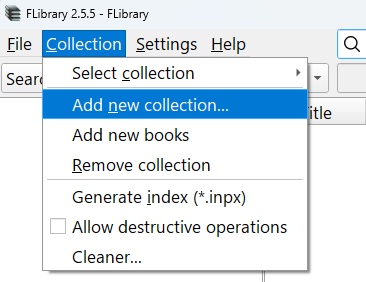
This same dialog box appears when the program is first launched.
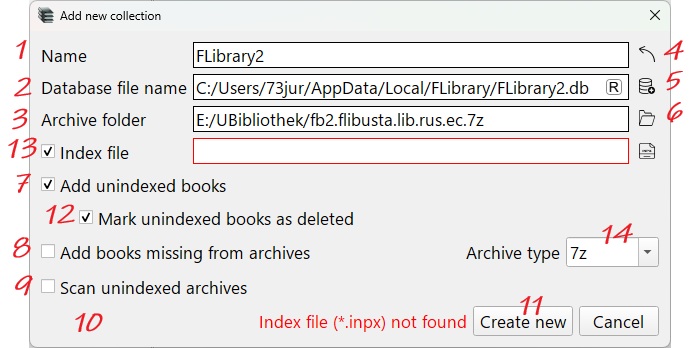
The following should be specified in the dialogue:
1. Collection name
2. Path to the database file
3. The path to the folder with book archives, where the program expects to find the index file *.inpx
13. The path to the index file *.inpx, if it is located in a different folder than the book archive, or if you need to create a collection without a book archive.
The following buttons will help you avoid mistakes when filling out the form:
5. Will display the database file selection dialog
6. Will display a dialog box for selecting a folder with book archives
4. Retrieves the name from the collection index file, if found. For this to work, you must first specify 3 or 13.
If something was filled in incorrectly, error message 10 will indicate this.
After correctly filling in fields 1-3, you can click on button 11. The process of creating the collection will begin. This will not take long, depending on the performance of your processor and the speed of the disk on which you have decided to locate the database. On my computer, creating a new collection - a local copy of Flibusta - takes about half a minute.
Details, nuances
You can specify an existing file as the database, for example, from an earlier version of the program, or even from MyHomeLib. Then button 11 will change the text to “Add,” and instead of creating a new collection, the collection from the specified file will be added.
(⊙_⊙) ATTENTION! After that, the database file will most likely not be usable in the program in which it was created, because FLibrary will change its structure to suit itself.
Options for creating a collection:
7. Add unindexed books, enabled by default. Books found in archives that are not listed in the archive index will be added to the collection. That is, they are in the archive but not in the index file.
8. Add books missing from archives, disabled by default. All books available in the index will be added to the collection, even those whose files are not in the archive. That is, symmetrically to the previous one, if it is in the index, it may not be in the archive.
9. Scan unindexed archives, disabled by default. FLibrary will scan all archives in the specified folder, including those not mentioned in the index file. This means that you can place any archives with books in fb2 format in the archive folder, and they will be added to the collection. Of course, such scanning will take more time than simple parsing of *.inpx.
12. Mark unindexed books as deleted, enabled by default. Unindexed files are in the archive for historical reasons and usually have indexed copies.
14. Archive type. If checkbox 8 is enabled, there may be no archive for the indexed book in folder 3. In this case, an archive with the name from the index and the specified extension will be saved. This may be necessary when searching for the desired book without downloading the entire distribution.
📓 How do I update my collection?
Download the distribution update as usual. The next time you launch FLibrary, it will detect the change in the *.inpx index file and prompt you to update the collection. Agree, and in a few seconds everything will be ready. However, from time to time it makes sense to recreate the collection “from scratch”, as the automatic update only pulls in previously missing data. Meanwhile, existing descriptions may contain useful corrections. Sometimes it is useful to recreate the collection when updating the FLibrary version, especially if it is recommended on the What's Changed page. When recreating the collection, do not forget to save user data.
The FLibrary HTTP server has a hidden setting (see below) that causes it to silently update the collection when *.inpx changes.
📓 How to find a book by title, author, or series?
It is better to search by author and series in the corresponding navigation sections, where you can not only search by list, but also filter it.
But you can also search for books by title, author, or series.
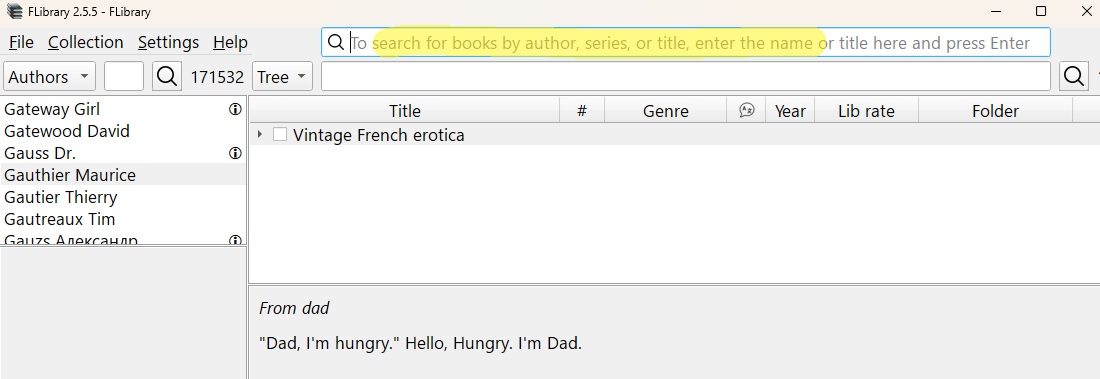
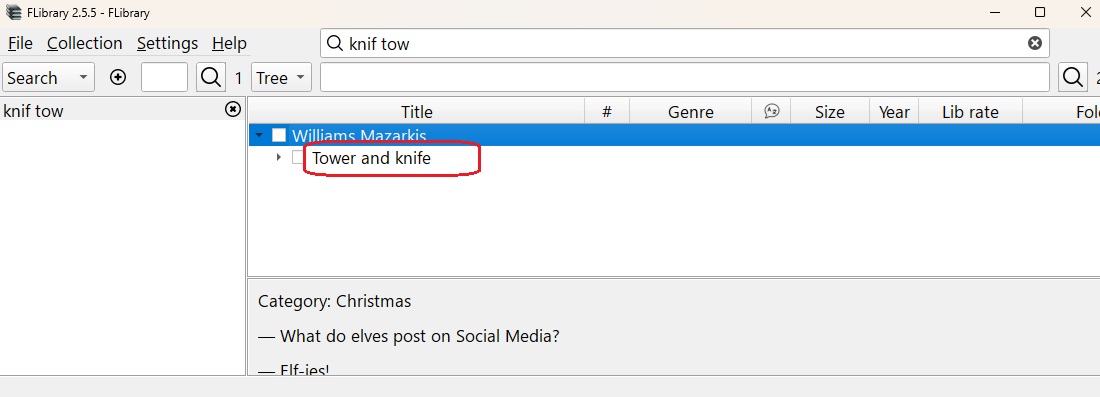
Let's say you need to find the book "Tower and Knife" by Mazarkis Williams. The programme has a full-text search function for book titles, so you don't have to enter the entire title. It is enough to enter a few words, not necessarily in the order in which they appear in the title.
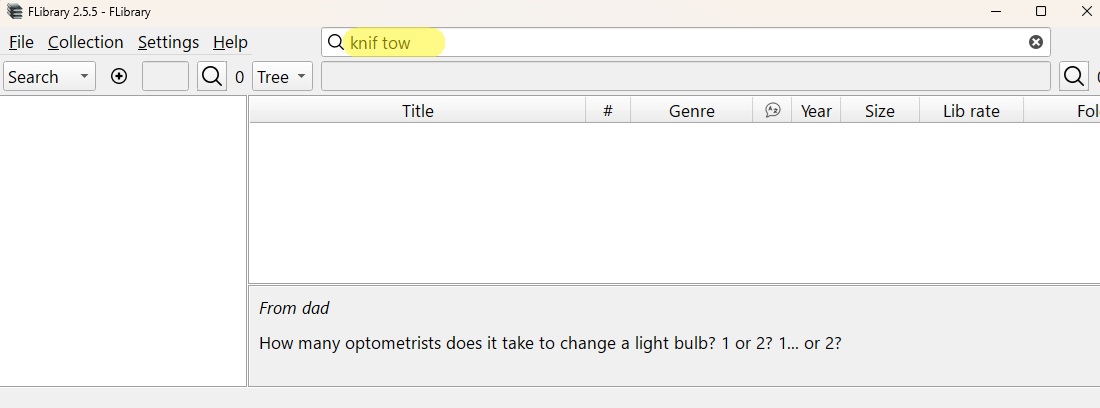
Press Enter (or the magnifying glass icon on the left), and the programme will go to the "Search", navigation section and display the search results in the book window результаты поиска
That would be the end of it, but I will add:
- Search queries are stored in the "Search" section, where they can be selected for repeated use
- You can add a search query in the same section by clicking the plus button
- Unnecessary requests can be deleted using the cross button
Search queries have accumulated. How can I delete them? It's inconvenient to do it one by one
- Select all (Ctrl+A) or only unnecessary queries (mouse + Ctrl or Shift)
- Press the delete button on one of the selected items
- Confirm deletion in the dialogue box that appears
The same applies to the list of groups.
📓 Is it possible to sort books by several columns?
Yes, you can. Hold down Shift while clicking on the column headers.
📓 I want to see books in only one language. Or two. Can you remove the others?
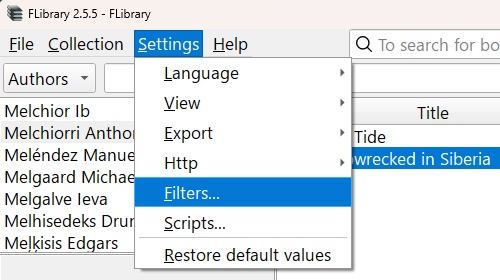
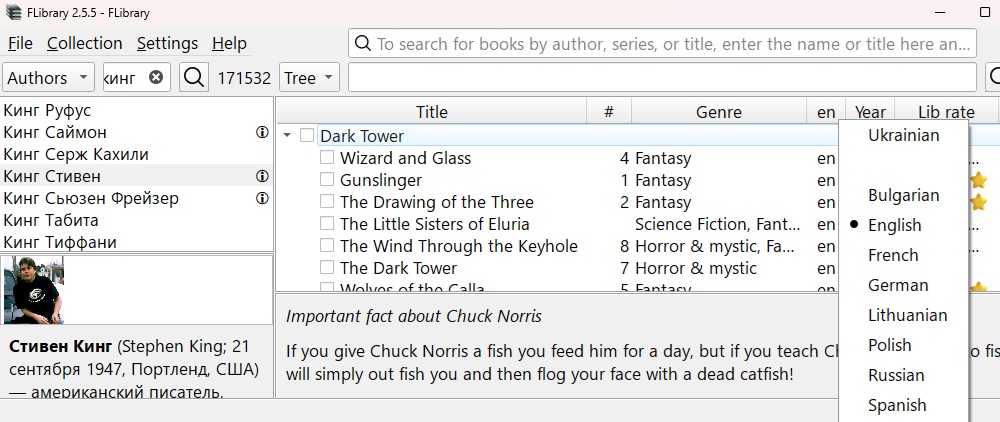
Yes, you can. Go to Settings/Filters to open the filter settings dialogue box
Go to the "Languages" tab, tick the languages you do not want to see in the "Books filtered" column. Tick "Filter enabled", click "Apply.
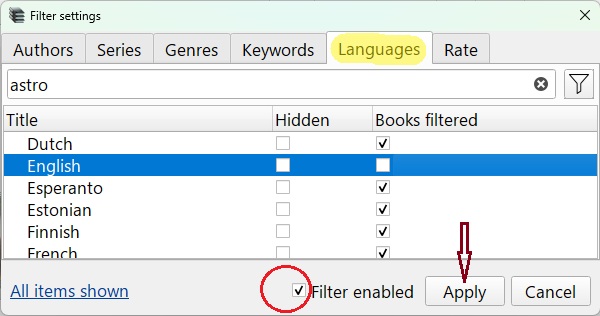
That's it, books in unwanted languages are hidden. You can hide languages from navigation (left pane of the main window) by ticking the "Hidden" column.
The same method can be used to remove unnecessary authors, series, genres and keywords.
(⊙_⊙) Caution! Checkboxes are independent — after removing an element from navigation, you will continue to see books related to this element from other navigation elements/sections. Conversely, if you filter books by a navigation element, you will continue to see that navigation element in its section, and when you select it, you will see the filtered books (if they have not been filtered by another element).
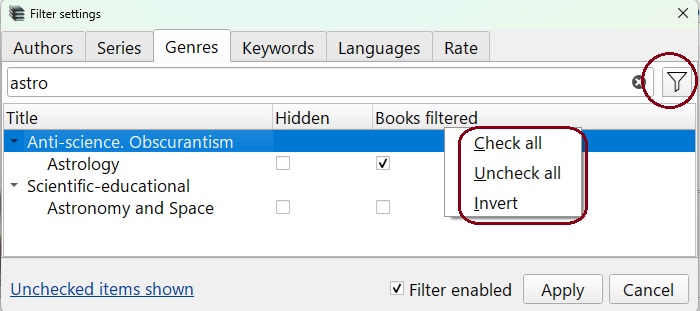
The dialogue box has a search/filter function, and the column headers with checkboxes have a context menu.
The "Quick filter" by language is still available from the context menu of the language column header in the books table.
📓 Is it possible to physically remove books I don't need from the archives?
Yes, you can. The programme has a feature that allows you to physically clean up your collection by deleting files from the archive and records from the database. The function for deleting files from the archive is initially blocked. To unblock it, select "Allow destructive operations" in the "Collection" main menu. After confirming your intention to continue and agreeing to the risk of permanent loss of books, the "Delete forever" option will be activated in the context menu of the books. It will also activate the checkbox 7 "Delete forever along with book files from the archive", see below.
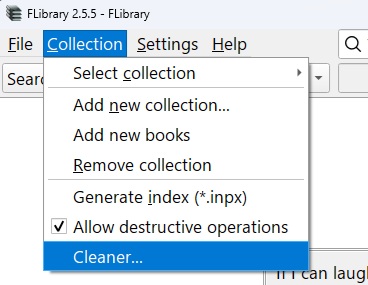
When you select the "Clean..." menu item, the collection cleaning criteria window will pop up.
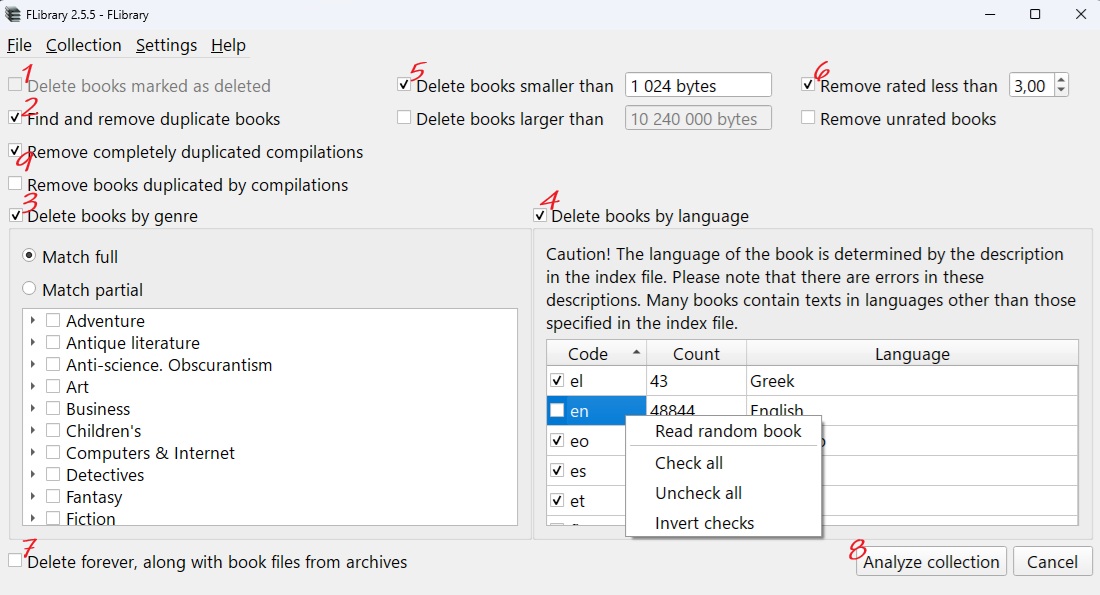
FLibrary supports the following criteria:
1. "Deleted" books. When this criterion is selected, books marked as deleted in the database will be removed from the collection.
2. Duplicate books. The programme considers books with the same title and at least one author in common to be duplicates. If you select this criterion, all such books will be deleted except for the one that was added to the collection last. This means that different editions or translations of the same book will be considered duplicates. Please be careful.
3. Genres. You can mark unwanted genres. This criterion has an additional setting, implemented with radio buttons:
- Exact match. When selected, books will be deleted whose genres are all included in the set selected for deletion.
- Partial match. Books with at least one genre selected for deletion will be deleted. This is a very dangerous option.
4. Languages. You can mark unwanted languages. It should be understood that the actual language of the text of many books does not match that specified in the description or in the fb2 metadata.
5. By size. When this criterion is selected, books whose file size is smaller than the minimum or larger than the maximum value will be deleted.
6. By rating. If the library rating of the book is lower than specified and/or there is no rating, i.e. no one has rated the book yet.
9. Compilations.
After carefully placing the check marks, press button 8 "Analyse collection", wait a short time for the collection to be analysed for compliance with the specified criteria, and then you will see a message with the result
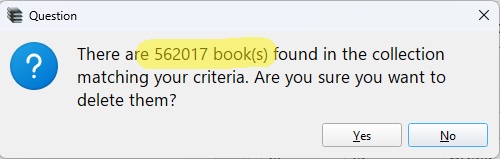
This is your last chance to change your mind and click "No". But if you click "Yes", the programme will start deleting books.
(⊙_⊙) WARNING! If checkbox 7 is checked, the book files will be physically deleted from the archives, and their records will be deleted from the database. This may take a long time, depending on the number of books being deleted, the power of the computer, the performance of the disk on which the collection is located, etc. But not very long. If checkbox 7 is not checked, the books will simply be hidden in the FLibrary interface.
After cleaning the collection, it makes sense to deactivate destructive operations.
📓 How do I convert a book from fb2 to the format I need?
I'm too lazy to read so much, can you make it faster?
Yes, you can. Set this registry key by adjusting the paths:
Windows Registry Editor Version 5.00 [HKEY_CURRENT_USER\SOFTWARE\HomeCompa\Flibrary\Scripts\a1e61de4-da10-4015-a7c3-91453cd0e215] "Name"="Convert to epub" "Number"=dword:00000001 "Type"="ExportToDevice" [HKEY_CURRENT_USER\SOFTWARE\HomeCompa\Flibrary\Scripts\a1e61de4-da10-4015-a7c3-91453cd0e215\37fe0cd3-35ee-4521-85a9-5b3f00138585] "Command"="D:\\programs\\converters\\FB2ePub\\Fb2ePub.exe" "Arguments"="\"%source_file%\" \"D:/books/%author%/[%series%/[%seq_number%-]]%title%.epub\"" "Number"=dword:00000002 "Type"="LaunchApp" [HKEY_CURRENT_USER\SOFTWARE\HomeCompa\Flibrary\Scripts\a1e61de4-da10-4015-a7c3-91453cd0e215\3b791fea-5942-479d-b7e2-6c3c3f6862cd] "Command"="mkdir" "Arguments"="\"D:/books/%author%/[%series%]\"" "Number"=dword:00000001 "Type"="System"
1. FLibrary does not have built-in converters, but it is possible to add any external converter if it has a command line interface. For example, you can borrow the necessary converter from the MyHomeLib folder or get its more modern equivalent here.. To call an external converter from FLibrary, you need to configure scripts, one for each desired format.
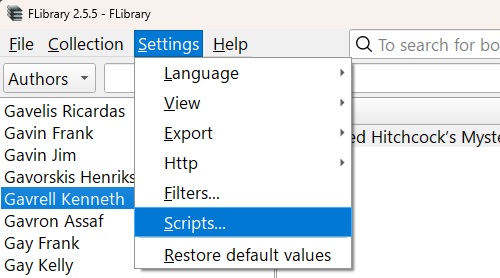
2. In the main menu, select Settings/Scripts...
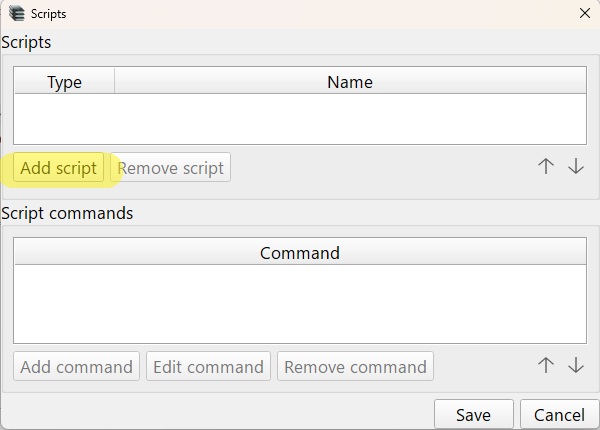
3. In the window that appears, click "Add script"
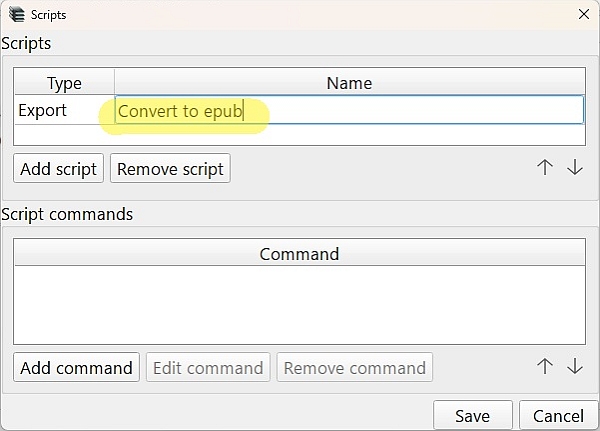
A line will appear at the top of the window ("Scripts") where you can enter the desired name for the script.
Now you need to add script commands. Which ones exactly depends on the selected external converter. A typical set consists of two commands:
a. create a folder and
b. run the converter.
So, let's add the commands.
4. Click "Add command"
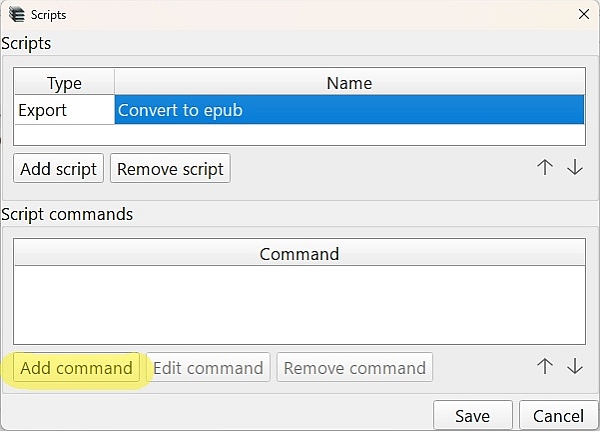
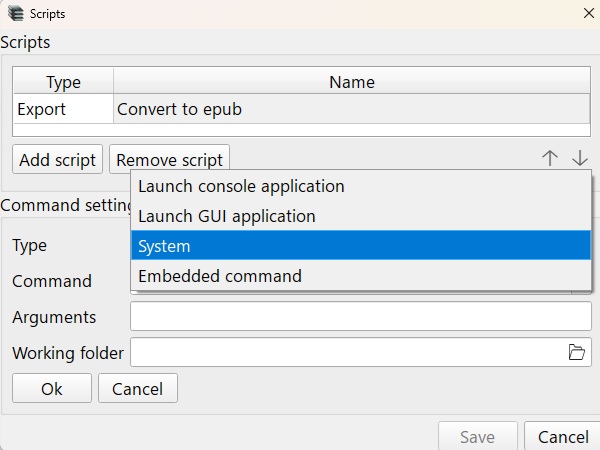
5. Four lines will appear at the bottom of the "Command Settings" window. In the first line, “Type” (1), select "System" from the drop-down menu.
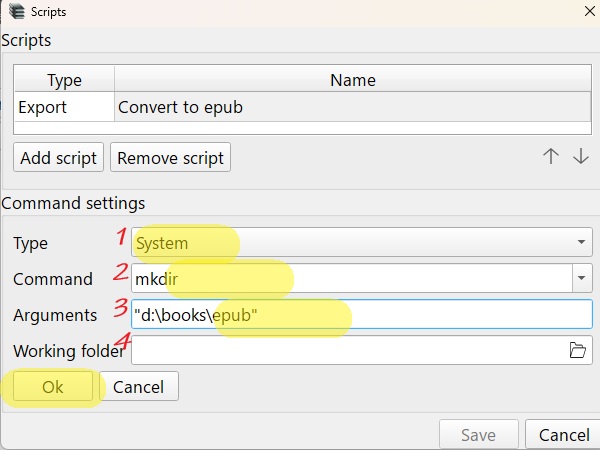
6. In the second line, "Command" (2), enter mkdir , i.e. create a folder.
7. In the third line, ‘Arguments’ (3), enter the desired path. (⊙_⊙) CAUTION! Slashes must be in Windows style, i.e. like this: \ . It is advisable to enclose each argument in quotation marks. Example:
"d:\books\epub"
Save the result - "OK"
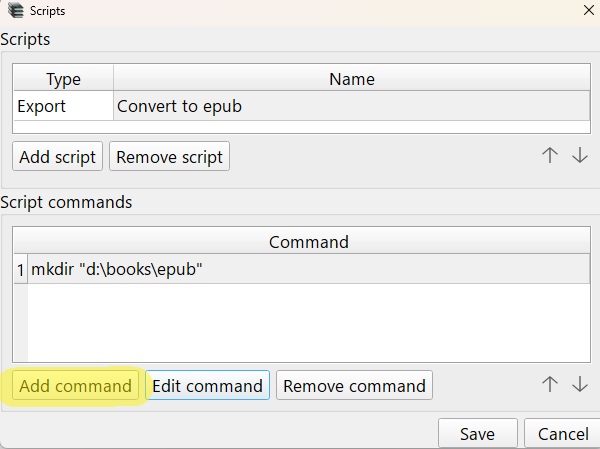
8. Add a command to launch the converter: click "Add command"
9. In the first line, "Type" (1), select "Launch console application" from the drop-down menu, then click on the programme selection icon in the second line, "Command" (2).
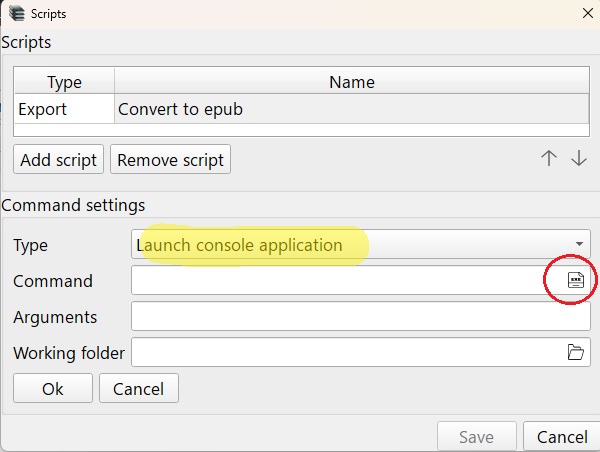
* Purpose of the fourth line, "Working folder" (4) — see below, "Details, nuances"
10. In the file selection dialogue box that appears, specify the desired external converter:
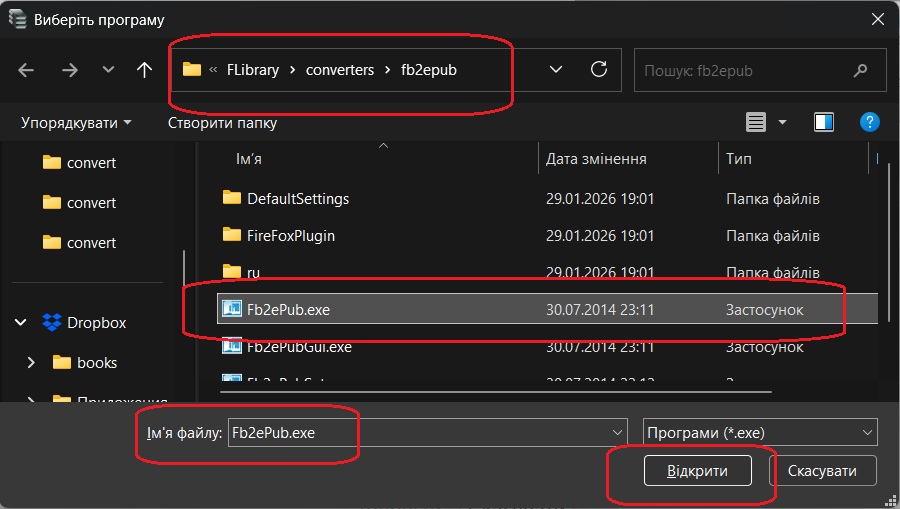
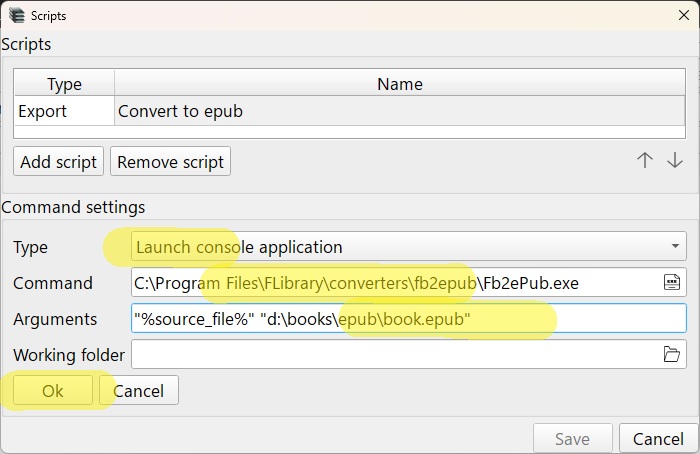
11. Add the converter launch parameters in the "Arguments" line (3). This converter requires the paths to the source and converted files. Enter
"%source_file%" "d:\books\epub\book.epub"
12. Save the result - "OK"
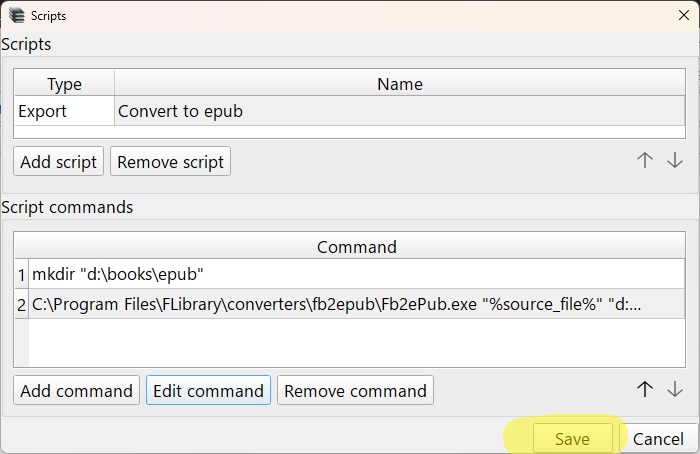
13. Save the script
That's it, the script is ready. From now on, in the context menu of books, in the Export submenu, there will be an item "Convert to epub", i.e. the name of the script from step 3
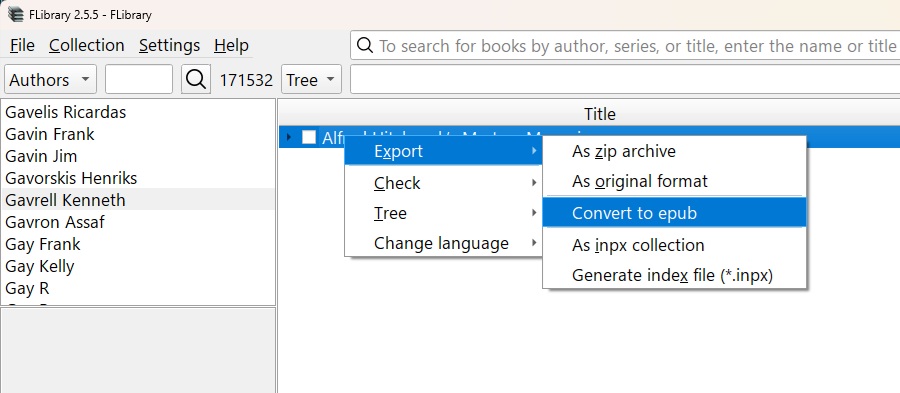
If you select it, the file 'book.epub' will appear in the folder d:\books\epub.
Probably, few people would want to convert books to the same file every time, because they want the files to be saved in folders named after the authors and named after the book titles. To do this, macros should be used in the script commands when specifying folders. For example, to make sure the path to the book includes its author and series (if any), and the file name includes the series number (if any) and the book title, you should enter the following line in "Arguments" (3):
"d:\books\epub\%author%\[%series%\[%seq_number%-]]%title%.epub"
A complete list of available macros is available from the Arguments editing context menu
"d:\books\%author%\[%series%]"
"%source_file%" "d:\books\%author%\[%series%\[%seq_number%-]]%title%.mobi"
"%source_file%" "d:\books\epub\%author%\[%series%\[%seq_number%-]]%title%_%db_id%.epub"
"-i "%source_file%" -o "d:\books\%author%\[%series%\[%seq_number%-]]%title%_%db_id%.lrf" -s "d:\Programs\\converters\fb2lrf\default_styles.sini"
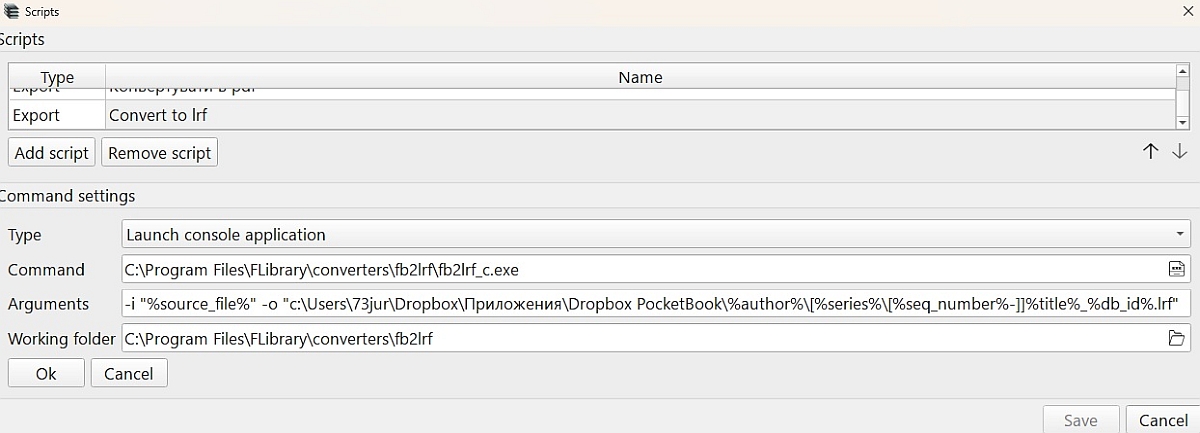
"-i "%source_file%" -o "d:\books\%author%\[%series%\[%seq_number%-]]%title%_%db_id%.lrf" * CWD (Current Workind Directory) is the folder from which the programme is launched, which is the root for the relative paths of the files it opens. For example, here is how to work with the fb2lrf_c.exe converter, which requires a configuration file. If you run it manually from its own folder or, equivalently, run it programmatically (from FLibrary), specifying its own folder as CWD, then the configuration file can be specified as -s default_styles.sini. Or you can not specify it at all, because by default it tries to use this file, and in this case it will succeed.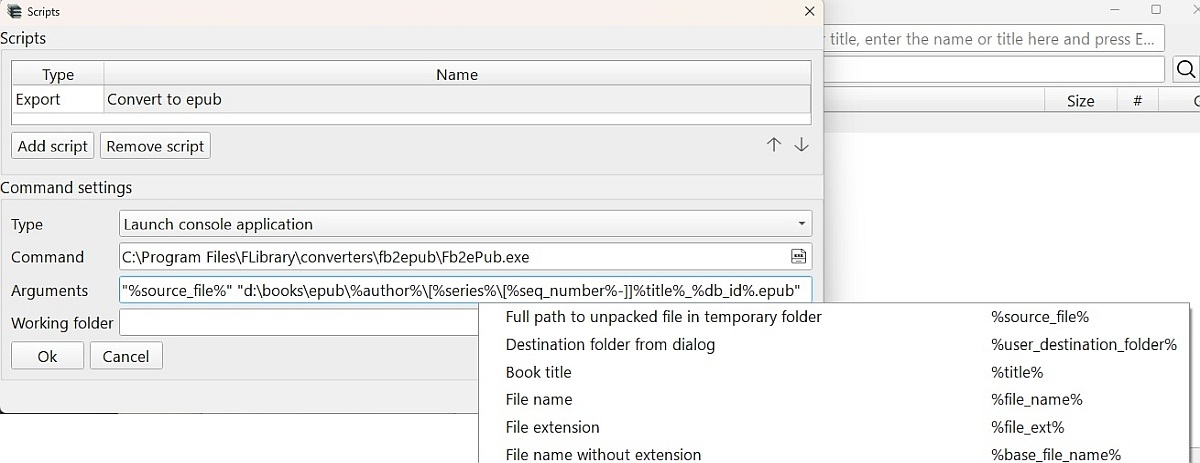
Details, nuances
In particular, the fb2 to lrf converter (fb2lrf.exe - for conversion to the format of the ancient Sony PRS-350 (650, 600...) reader) requires keys for the input and output files, as well as the attachment of the default style file. Therefore, the "Arguments" line for this converter will look like this:
or in the "Arguments" line, enter the input and output files with keys:
and in the "Working folder" line, select the folder of the default styles file.
📓 I selected the ‘All Books’ navigation section. How do I exit it now?
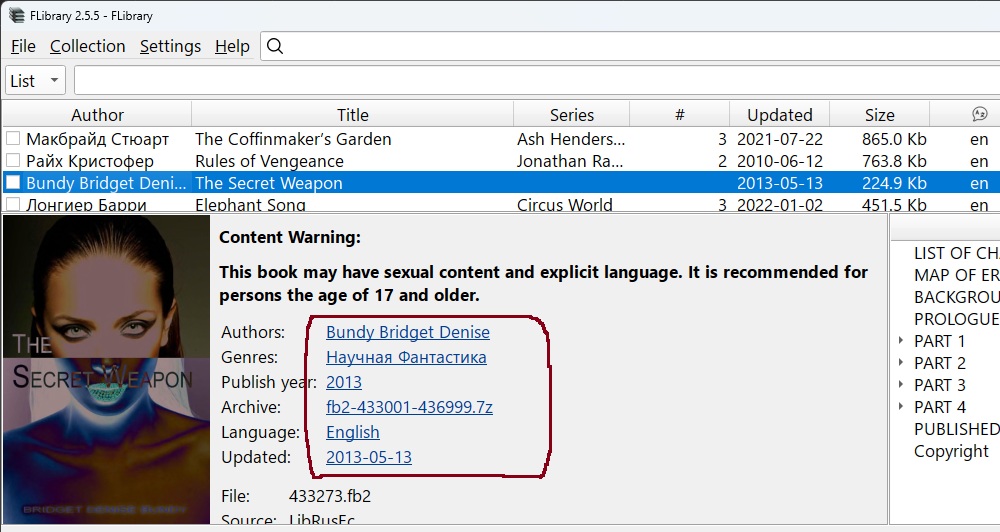
Follow any link from the annotation to any book.
📓 How to find out if the book I need is available?
There are several options:
with cataloguizer (recommended)
- Download the index file *.inpx and one of the FLibrary installers, according to your preference
- Install FLibrary
- Create a collection based on an index file with the option "Add books missing from archives"
- Search for the book you need in the program
with the contents file
Download the file contents.7z. The archive contains text files in csv format, one file per language. Each line of the file describes one book. Format: author, title, series (number in the series), archive, file. The separator is a tab.
This method is useful if you are satisfied with a book without a cover and illustrations. Otherwise, you will still have to download and install the categorizer.
with an index file (for experienced users)
Download the index file *.inpx. It is a regular zip archive containing text files *.inp, where each line describes one book in the distribution. The line is csv, the separator is a byte with code 04. List of fields: AUTHOR; GENRE; TITLE; SERIES; SERNO; FILE; SIZE; LIBID; DEL; EXT; DATE; LANG; LIBRATE; KEYWORDS; YEAR; SOURCELIB
You can search the files for text using your favourite text viewer. I recommend the one built into Far Manager.
This method is useful if you are satisfied with a book without a cover and illustrations. Otherwise, you will still have to download and install the categorizer.
📓 How to get the book you need without downloading the entire distribution?
- Let's find out if the book you need is available. See the instructions above.
- Find out the name of the archive where the book is located
- Download this archive, put it under FLibrary
- Extract the book file
- ...
- PROFIT!!!!
Now the book can be exported from FLibrary.
You don't even need to download the archive
, instead, you can configure the script to download the book you want directly from the Flibusta website. You will also need a console application for downloading files from the Internet (e.g. curl), which you will need to download and install. If you have the standard version of FLibrary installed by the installer, you can use a registry key to configure the script
Here it is
Windows Registry Editor Version 5.00 [HKEY_CURRENT_USER\SOFTWARE\HomeCompa\Flibrary\Scripts\933c6488-b061-44d6-82fa-6257a6144f0f] "Name"="Download from Flibusta" "Number"=dword:00000001 "Type"="ExportToDevice" [HKEY_CURRENT_USER\SOFTWARE\HomeCompa\Flibrary\Scripts\933c6488-b061-44d6-82fa-6257a6144f0f\b2206572-8ef6-4a69-8f97-71bcb151505d] "Command"="mkdir" "Arguments"="\"c:/books/%author%/[%series%]\"" "Number"=dword:00000001 "Type"="System" [HKEY_CURRENT_USER\SOFTWARE\HomeCompa\Flibrary\Scripts\933c6488-b061-44d6-82fa-6257a6144f0f\d27e10fd-3816-41b1-af5b-a9a17043ad12] "Command"="D:\\programs\\curl\\bin\\curl.exe" "Arguments"="-o \"c:/books/%author%/[%series%/[%seq_number%-]]%title%.zip\" -L \"http://x.flibusta.is/b/%lib_id%/download\"" "Number"=dword:00000002 "Type"="LaunchApp"
(⊙_⊙) CAUTION! The path to curl in the script must match where you installed it. If you are downloading with a programme other than curl, you must change the command line parameters according to its syntax. Also, adjust the path where the books will be downloaded to your liking. In the suggested registry file, this is c:/books.
If you prefer the portable version of FLibrary, then you are most likely an experienced user and will easily configure everything yourself. But if you encounter any difficulties, please ask, I will be happy to help.
(⊙_⊙) CAUTION! It will only work for books from Flibusta. Librusec probably offers this option too, but the link will be different. If you know what it is, let me know and we'll add it here.
You can even do without external tools
, but you will still have to configure the script. However, now you don't need curl, and one command built into FLibrary is enough:
- Add the script
- We call it something like "Download from Flibusta"
- Add the command
- Select the "Embedded command" type from the drop-down menu
- Select the "Download" command
- Set the command parameters (where to put, where to download from). To download from Flibusta to the t:/ftp folder, specify
-o "t:/ftp/%author%/[%series%/[%seq_number%-]]%title%.zip" "http://x.flibusta.is/b/%lib_id%/download"
In your case, specify any valid path, such as c:\books. It is up to you, as long as the drive is in the system and you have write permissions. You can also change the path template. In the context menu of the argument input line, there is a context menu with available macros. - Save the result
After these simple steps, the menu item ‘Download from Flibusta’ will appear in the context menu of the books, and the book will be downloaded when you select it. If your firewall and internet service provider don't mind, of course.
📓 I have five computers and three laptops at home. Do I need to download the distribution and install FLibrary on all of these devices?
Not necessarily. FLibrary provides some networking capabilities in the form of several HTTP services. To access them, you need to run the HTTP server included in FLibrary. Select the menu item
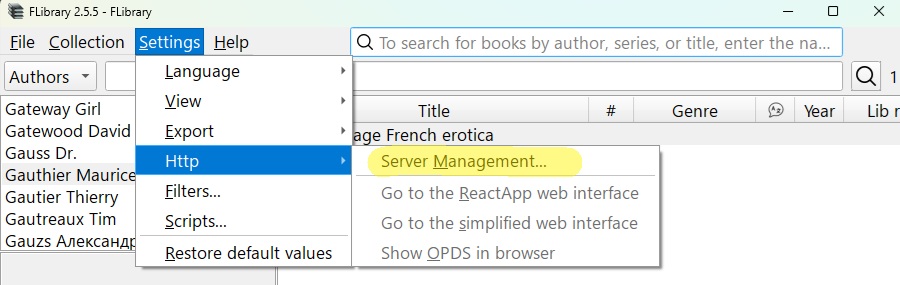
In the dialog box that opens => Click Start and that's it, the server is running, you can see how it works. To do this, you can click on the labels that have become clickable.
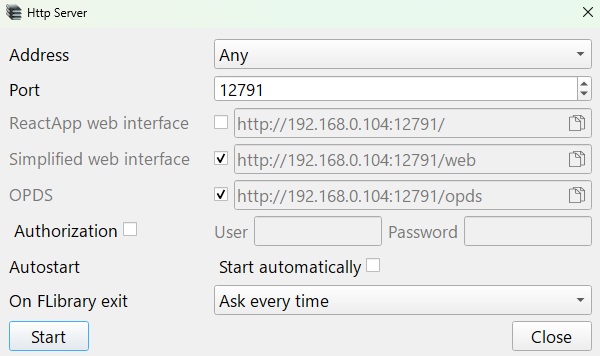
- Web interface ReactApp. The browser will open a website developed by the respected alloroc2. Here you can search for books by title/author/series, download them, and even read them right there on the website. It's very convenient. The website interface is quite intuitive, and its functionality is constantly expanding.
by the Author
You can work via the web in a browser from any device.
Search by entering text, with results immediately sorted by title, author, and series.
View groups of books pre-selected in the program.
For the selected book, statistics + cover, table of contents with chapters and their location in the book.
You can read the selected book without leaving the cataloguer's web interface.
For ease of reading, switch to full screen and scroll through the text.
Control the font and scrolling speed with hotkeys.
Reading progress is saved in the browser.
Opened the site, found a book, and lost touch with reality.© alloroc2
- Simplified web interface. A page will open in your browser, reflecting my knowledge of HTML. There you will also find search, navigation through the collection, downloading, and reading. But it has absolutely no design, just extreme minimalism. It's very niche, but it's enough for me.
- OPDS A page with some JSON will open in your browser. Actually, you should access this address not with a browser, but with a reader that supports the OPDS protocol.
When the HTTP server is running, these addresses are accessible from any device on the same local network, i.e., you can access two versions of the web interface on another computer/smartphone/tablet, as well as connect to the OPDS catalog with a reader.
Will it only work at home? Can't it be done online?
It is possible, but you will have to forward the specified ports to the outside world yourself. I am not knowledgeable enough in this area to even be sure that the previous statement makes sense. Please search for “white IP” and “CloudFlare.com tunnels.” I would appreciate any insightful comments about this in a private message.
smart people say
(⊙_⊙)
I set up external access through nginx—I just added the subdomain book.xxx.xx, obtained a certificate for it, and now I can access it via https, and nginx redirects to http on the internal network.
© SoloMen
(⊙_⊙)
I managed to do it with Tilescale. Here's what I did to use it:
- I downloaded TileScale (somewhere on the Internet they say there is an open source equivalent) onto my phone and computer;
- Connected them (the phone and the computer) to the general network using Tilescale;
- I enabled the server in FLibrary according to the FAQ and entered the address specified in Tilescale, which in my case was the attached address 100.84.44.127 (those who want to try this method may find a different address; check the control panel on the website or the task manager by clicking on the Tilescale column; the IPv4 address column below the graph will show the address that we attach). I specifically left opds mode enabled for myself, entered its address for AlReader;
- Profit, actually;
UPD In the HTTP server address settings, you can specify “Any,” in which case the services will be accessible via all available interfaces: localhost, 127.0.0.1, local IP address, etc.
© AncientSUS
📓 What's with all the mess with authors and series?
This is the result of merging Flibusta and Librusec into a single distribution. Indeed, the inconsistency in the naming of authors and series on Flibusta and Librusec is a serious problem. Plus, libraries have different approaches to resolving conflicts between authors with the same name. Because of this, some names here may either “split” or “collapse,” resulting in books by the same author in a distribution being “linked” to different authors, and vice versa, books by different authors being attributed to the same author. The same applies to series.
So, there's nothing we can do about it?
Unfortunately, it is unlikely that we will be able to coordinate this distribution at the level of network libraries that are sources of books. We can only make minor corrections. If you notice that any author or series has been “split” or “merged,” please let me know. I will make a local edit, and the next monthly update will correct the situation.
📓 Is it okay that my antivirus software is complaining about the distribution?
It is ok. Currently, there are several known reasons why antivirus software may trigger alerts for this distribution.
1. FLibrary_setup.exe installer.
The file is generated by one of the most popular installer creation tools, Inno Setup. It can be assumed that virus writers use the same tool, which is why Inno Setup signatures regularly appear in antivirus databases. What can be done about this? In similar cases, reputable software companies contact vendors, who tweak their databases, and antivirus programs stop generating false positives. Unfortunately, I am not a reputable company, so in the case of FLibrary, all you can do is take my word for it and ignore the antivirus. That's what I do. You can also use the msi installer or an archive with a “portable” version; virustotal.com has never complained about them.
Or you can carefully examine the source code for malware and compile the project yourself.
2. A book by Oleg Mikhailovich Boitsov called “Protect Your Computer 100% from Viruses and Hackers,” file 166093.fb2 in the archive fb2-166043-168102.7z.
It seems that some antivirus programs don't like the examples of malicious code contained therein. In my opinion, this is clearly overkill and paranoia. If your reader does not attempt to interpret and run scripts from book pages, there is nothing to worry about, and you can safely add *.fb2 to your antivirus exceptions.
3. A book by Timofey Chadov called “Using ListView in Virtual List Mode,” file 170704.fb2 in the archive fb2-168103-172702.7z.
The author included an executable exe file in it, which at least one vendor from virustotal complained about. But as far as I know, antivirus programs are not yet trying to parse fb2 in order to decode binary attachments from base64, unpack the resulting archive, and analyze its contents. If your reader does not attempt to examine binary attachments of books that are not linked from its pages in order to run programs suddenly found there, then again, there is nothing to worry about.
📓 I found a bug in the program, what should I do?
- Ensure that the bug is present in the latest release of FLibrary. This is especially true for typos, many of which were found and fixed while writing these instructions.
- Post the bug report here>, describing the issue if possible, attaching a screenshot, etc.
If you don't have a GitHub account and don't feel like registering, you can send me a private message. Or leave a message in the thread. I would appreciate any feedback. But anyone who posts a bug report (or feature request that will be taken for implementation) on GitHub will receive a personal pre-release build of FLibrary. With a mention in About.
📓 They promise fast FLibrary performance, but in reality it's slow. Are they lying?
At least one user experienced interference with the program from Microsoft Defender, which manifested itself in slow performance and increased RAM consumption. Configuring Defender helped.
Try adding it to your antivirus exceptions
- The folder with the program
- The folder containing the collection database
- Folder with book archives
- Folder with temporary files (%TEMP%)
📓 There are some ‘entertainment’ options in the menu. I checked all the boxes, what next?
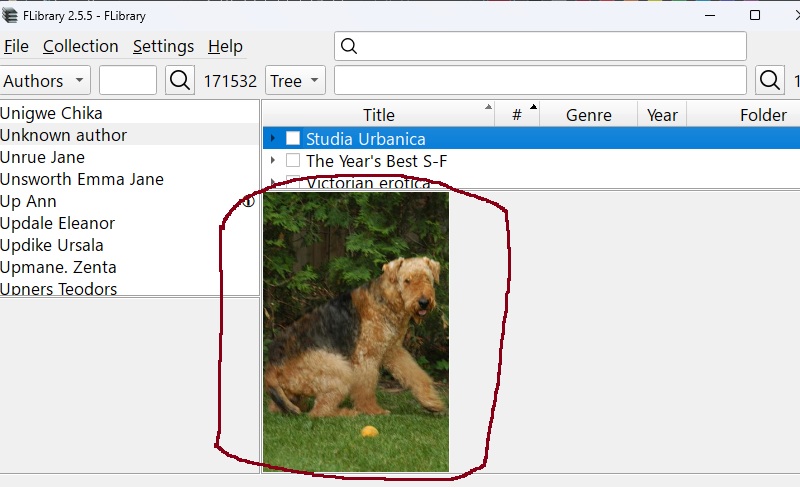
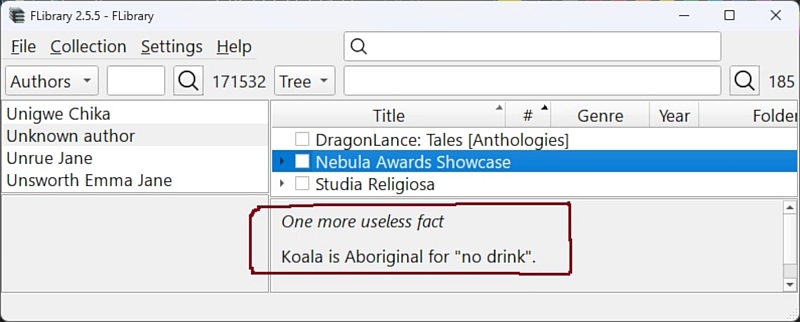
Entertainment content is displayed instead of an empty annotation when no books are selected in the books window.
For example
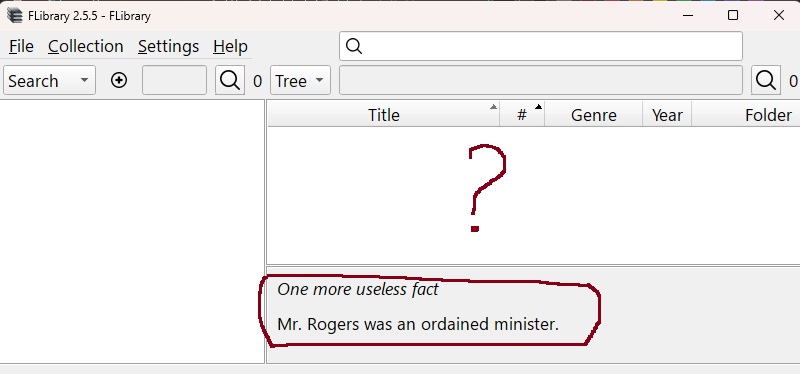
I see an empty annotation, where are the jokes?
For this to work, you need access to a) the internet, and b) services that provide content. Keep in mind that some services may stop working. And some are not accessible from your location without a VPN.
To diagnose the problem, you can enable the display of errors in receiving entertainment content using a hidden setting.
Why is everything in English?
If you find (or set up your own) a similar public service (without registration or SMS) in another language, let me know and I'll add it.
📓 Why are there so many FLibrary installers in the distribution?
Three Rings for the Elven-kings under the sky
Seven for the Dwarf-lords in their halls of stone
Nine for Mortal Men doomed to die
I FLibrary_setup.exe
Generated by InnoSetup. The main installer, the most convenient and functional. Allows you to
- Select the installer language
- Select installation mode for me only/for everyone
- Run the program immediately after installation
There is one caveat: some antivirus programs don't like it. Who should you believe, the antivirus program or me, Jordan Russell and Martijn Laan? Decide for yourself...
II FLibrary_setup.msi
Microsoft Windows Installer. Most likely, I just don't know how to cook it, but
- The installer language is English for universality.
- The program is installed only for everyone, in `C:\Program Files`
- After the installer finishes, nothing starts automatically.
I would be grateful if someone could teach me how to make msi smooth and silky.
III FLibrary_portable.7z
This is not an installer at all, but simply an archive with binaries. You will have to unpack and configure the launch shortcuts yourself, manually. A program installed in this way does not store its settings in the registry, but in a nearby ini file, like a portable one. Therefore, you need to unpack it where you have write access.
So which one should I choose?
The contents of all installers are identical, so you can choose any one based on your preferences and experience. However, I recommend the first option, as that is the one I use myself. The other two are tested rarely.
📓 Where does the program store ...?
settings
- Standard version (installed by the installer) - registry branch HKEY_CURRENT_USER\SOFTWARE\HomeCompa\Flibrary
- Portable version (from archive) - FLibrary.ini file in the program folder
work log
File %TEMP%\HomeCompa.FLibrary.log
The latest log entries can be viewed directly in the program by pressing Esc. Or via the Settings/View/Log/Show menu.
📓 Can I have a complete list of FLibrary's hidden settings?
This section describes features that few people need, so they are not included in the interface in order to avoid clutter.
(⊙_⊙) ATTENTION!!! These settings should be added as needed; they are not included in the settings storage by default.
Where to find the settings - see “Where does the program store ...?”.
- v2.0.0 `Preferences/LibRate/symbol`, number, 11088 by default - ASCII or UTF-8 code for the star symbol ⭐ for the rating column in the source library. The codes for different characters can be found here. You can use those that have no more than four characters in Hex.
- v2.1.2 `Preferences/hideScrollBars`, string (true | false) true by default - controls the visibility of scrollbars. If set to ‘false’, scrollbars will not be hidden.
- v2.1.4 `Preferences/GenresSortMode`, string (SortByCode | SortByName | SortByChildCount | SortByCodeDesc | SortByNameDesc | SortByChildCountDesc), SortByCode by default - genre sorting mode
- v2.1.4 `Preferences/opds/BookEntryLimit`, DWORD number, 25 y default - limit on the number of books returned by a single list via http.
- v2.2.0 Not a setting, but a hidden feature. Pressing Alt+Shift+Q will bring up a window where you can run SQL queries on the collection database. The results of the queries are recorded in the logs.
- v2.2.1 `Preferences/opds/transliterate`, string (true | false), false by default - transliteration of the name of a file downloaded via http.
- v2.2.1 `Preferences/LibRate/precision`, DWORD number, -1 by default - replaces the book rating stars in the library with a number with the precision specified by this parameter. For a true average rating on Flibusta, you will need the reviews\additional.zip file. If this setting is missing or set to -1, stars are displayed.
- v2.2.1 `Preferences/LibRate/colors/2.0`, `ui/Books/LibRate/colors/3.0`, `ui/Books/LibRate/colors/4.5`и т.п. DWORD number, corresponding to the color in RRGGBB format. For gradient coloring of the rating digits from the previous point.
- v2.2.2 `Preferences/AnnotationJokes/Visible`, string (true | false) true by default - when set to ‘false’, disables entertainment content functionality in empty annotations.
- v2.2.2 `Preferences/AnnotationJokes/%ApiName%Visible`, string (true | false) true by default - when set to ‘false’, disables %ApiName%, hides the corresponding menu item `Settings/View/Annotation/Entertainment/%ApiNameTitle%`. It makes sense to disable those APIs that are not available in your area. Or those that have stopped working.
- v2.3.0 `Preferences/opds/ReadUrlTemplate` Template for linking to a reader from the Web. For example, if you set it to "http://127.0.0.1:44080/#/reader?url=http://%HTTP_HOST%:%HTTP_PORT%/Images/fb2/%1", you can read books with liberama. Before doing so, you need to download liberama, configure it, and launch it. Perhaps the configuration will find another use someday.
- v2.3.0 `Preferences/opds/SeparatedSearch`, string (true | false) false by default - for OPDS and the web interface, it includes separate search modes for authors, series, book titles, and all together.
- v2.3.0 `Preferences/opds/AutoupdateCollection`, string (true | false) false by default - when set to `true`, the HTTP server (opds.exe) will monitor inpx and, if it changes, automatically update the collection.
- v2.4.1 `Preferences/StartFocusedControl`, string (SearchBooksByNames | NavigationSearchAndFilter | BooksSearchAndFilter) SearchBooksByNames by default - input field, active at program startup.
- v2.4.1 `Preferences/Alphabets/LinkedControl`, string (SearchBooksByNames | NavigationSearchAndFilter | BooksSearchAndFilter) - the input field with which the alphabet panel works. By default, this is not specified; the alphabet panel works with the active input field, i.e., the one where the cursor is currently located.
- v2.4.1 `Preferences/CommonBooksTableColumnSettings`, string (true | false) false by default - when set to `true`, the table column settings will be common to all navigation modes.
- v2.5.0 `Preferences/AnnotationReviewSortMode`, string (Time | Reviewer | Text | TimeDesc | ReviewerDesc | TextDesc), Time by default - modes for sorting reader reviews in the annotation.
- v2.5.4 `Preferences/HideToTray`, string (true | false) false by default - when set to `true`, the program hides in the system tray when Alt+F4 is pressed or the cross in the main window is clicked. Exiting via the main menu or hotkey closes the program.
- v2.5.4 `Preferences/MultipleInstance`, string (Enabled | Disabled | Dialog) - configures the ability to run multiple instances of FLibrary. Enabled - multiple instances can be run, Disabled - multiple instances cannot be run; when the next instance of the application is launched, the existing one will be displayed, Dialog - when the next instance is launched, a dialog box will be displayed. The default setting is Enabled. However, if HideToTray mode is enabled (see above), the setting will always be Disabled, regardless of the value set.
- v2.5.4 `Preferences/Export/TransliterationMode, string (None | FileNameOnly | AllExceptUserPath | All) - configures the transliteration of exported file names. The default value is None, i.e. do not transliterate. FileNameOnly - the file name will be transliterated, AllExceptUserPath - transliterate the export path except for the user-selected folder (%user_destination_folder%), All - transliterate the entire export path.
- v2.5.4 `Preferences/Interaction/Book/OnLink`, string (Read | ExtractAsIs | ExtractAsZip) - configures the program's behavior when clicking on a book title link in the annotation. Default - Read - open the book in the reader. ExtractAsIs - extract the book. ExtractAsZip - extract the book and pack it into a zip archive.
- v2.5.4 `Preferences/Interaction/Book/OnDoubleClick`, string (Read | ExtractAsIs | ExtractAsZip) - configures the program's behavior when double-clicking on a row in the book table; the values are the same as in the previous setting.
- v2.5.4 `Preferences/RelativePaths', string (true | false) false by default - when set to `true`, the program will save relative paths (reader, scripts, etc.) in the settings.
- v2.5.5 `Preferences/ReadMark - section for configuring the mark for read books. Parameters:
- color - color of mark for books read - DWORD number, corresponding to the color in the AABBGGRR format, where AA is the transparency value, and BBGGRR are the values for each of the RGB colors (note the color sequence => B-G-R!). It is also worth considering that AA is inverted, i.e. with a transparency value of FF (100% opaque), the color will become completely transparent and will not be visible.
- width - DWORD number, `0` by default - width of the read books label. A value of ‘0’ disables the label.
- position - DWORD number, the position of the label relative to the beginning of the line. If not set, the label will be in the position determined by the system. It doesn't look very good in tree mode, so it's better to set it to 0, for example. (available from v2.5.6)
Nuances:
- Setting the color is not required for application. To highlight what has been read, you can omit the ‘color’ parameter altogether and only specify the ‘width’ parameter. In this case, the color of the text will be used as the color of the mark (i.e., black in a light theme and white in a dark theme).
- (⊙_⊙) A book becomes “read” when a user rating is set for it.
- All parameters can be specified separately for book display modes: list or tree. To do this, add the suffix List or Tree to the parameter name, respectively. For example, colorTree or positionList. (available from v2.5.6)
- v2.5.5 `Preferences/opds/converter', section (Key) for managing the converting of files downloaded via http (opds, web interfaces). Parameters of the section - strings (String Value):
- command - path to the executable file (command line utility) of the converter
- arguments - converter parameters, default “%src%” “%dst%”. The following substitutions (macros) are used: %src% - the .fb2 book file to be converted, %dst% - the resulting file
- cwd - working directory for the converter being launched, by default - the folder containing FLibrary.exe
- ext - file extension after converting (for example: epub !!!only the extension, without dots, quotation marks, etc.!!!).
- v2.5.6 `Preferences/opds/converters', a section (Key) for managing the conversion of files downloaded via web interfaces. You can add subsections (Key) with arbitrary names (latin characters, numbers) to this section, each of which will add a converter to the book selected for download via web interfaces. The parameters (String Value) are identical to those described in the previous setting ("command", "arguments", "cwd", "ext") plus the required string: "title" , whose value will be displayed as a button in the ReactApp web interface or as a file with a convertible extension (in the simplified web interface).
- v2.5.5 `Preferences/AnnotationJokes/ShowErrors`, string (true | false) `false` by default - when set to `true`, the error message will be displayed in case of an error while retrieving entertainment content.
- v2.5.5 `Preferences/Books/Alignment', section for managing field alignment in the book table. In this section, you can create keys with the field name and alignment value.
Possible field names (keys): Author, Title, Series, SeqNumber, Genre, Folder, FileName, Size, LibRate, UserRate, UpdateDate, Year, Lang.
Possible alignment values: AlignLeft, AlignRight, AlignCenter. If you are interested, you can experiment with the values here. - v2.5.5 `Preferences/UserRate/symbol`, число по умолчанию '11088' - ascii или utf-8 код символа звёздочки ⭐ для колонки пользовательского рейтинга.
- v2.5.5 `Preferences/UserRate/noRateSymbol`, ascii or utf-8 character code for books with a rating of “No rating”.
- v2.5.6 `Preferences/Books/ContextMenu/HashEnabled`, string (true | false) false by default - when set to `true`, adds a “Hash” submenu to the book context menu with the items ‘Calculate’ and “Compare.” For those interested in the duplicate detector.
- v2.5.7 `Preferences/Export/seqNumberWidth`, DWORD number, default 1, width of the number substituted for the %seq_number% macro, missing digits are padded with zeros on the left.
- v2.6.0 `Preferences/Export/readFolder`, string - folder where files for the running reader are saved.
- v2.6.0 `Preferences/MinimizeToTray`, string (true | false); the default value is false - if set to `true`, the program hides in the system tray instead of minimizing.
I read the FAQ about hidden settings. “I didn't understand anything, but it was interesting ©”
That's strange, no one has complained before you. Well, let me explain. You wanted to replace the rate star symbol...
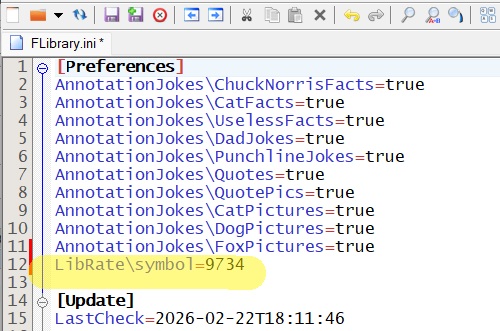
If you have the portable version of FLibrary, then:
- Close FLibrary
- Open the FLibrary.ini file from the program folder in a text editor.
- Find the [Preferences] section and add the line `LibRate\symbol=9734` to it.
- Save the file
- Launch FLibrary
* Instead of the number 9734, choose one that suits your taste, for example from here
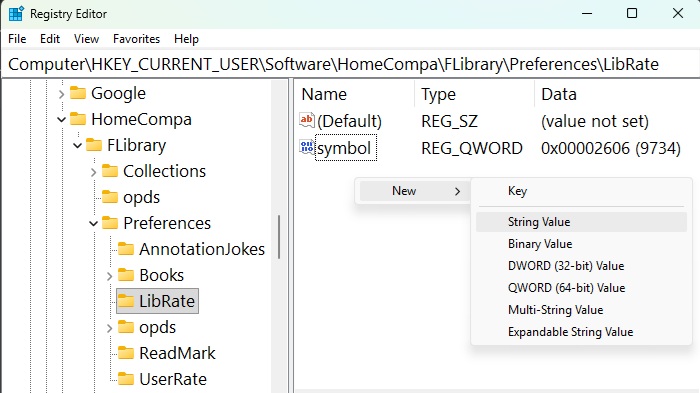
If your version of FLibrary was installed using the installer, then:
- Close FLibrary
- Launch the Registry Editor
- Go to branch `HKEY_CURRENT_USER\Software\HomeCompa\FLibrary\Preferences`
- Create (if it does not exist) a subsection named `LibRate` in this branch.
- Create a DWORD parameter named `symbol` in this subsection.
- Set the parameter to the decimal value 9734 (also hexadecimal 2606).
- Launch FLibrary
* Instead of the number 9734, choose one that suits your taste, for example from here